> ## Documentation Index
> Fetch the complete documentation index at: https://documentation.droog.io/llms.txt
> Use this file to discover all available pages before exploring further.
# How Droog Assist Answers Your Questions
> A plain-English guide to how Droog finds the right answer from your content — every time.
## The short version
When a user asks your assistant a question, Droog doesn't guess.
It searches through the content **you've uploaded**, finds the most relevant pieces, and uses that to craft a clear, accurate answer — all in seconds.
Think of it like giving your assistant a filing cabinet full of your documents, and training it to find exactly the right page every time someone asks a question.
## Why this matters
Most AI assistants are trained on general internet knowledge. They sound confident, but they might give answers that are outdated, off-brand, or simply wrong for your specific business.
Droog is different. **Your assistant only answers from your content.** If the answer isn't in your knowledge base, it says so, rather than making something up.
This makes Droog assistants:
* ✅ **Accurate** — grounded in your actual documents
* ✅ **Trustworthy** — won't invent facts or go off-topic
* ✅ **Up to date** — add new documents anytime to keep answers fresh
* ✅ **On-brand** — reflects your tone, terminology, and policies
## How it works — step by step
Here's what happens from the moment a user types a question to the moment they get an answer.
### 1. You upload your content
You start by uploading your documents — PDFs, Word files, website URL pages, or any other content that contains the knowledge your assistant needs.
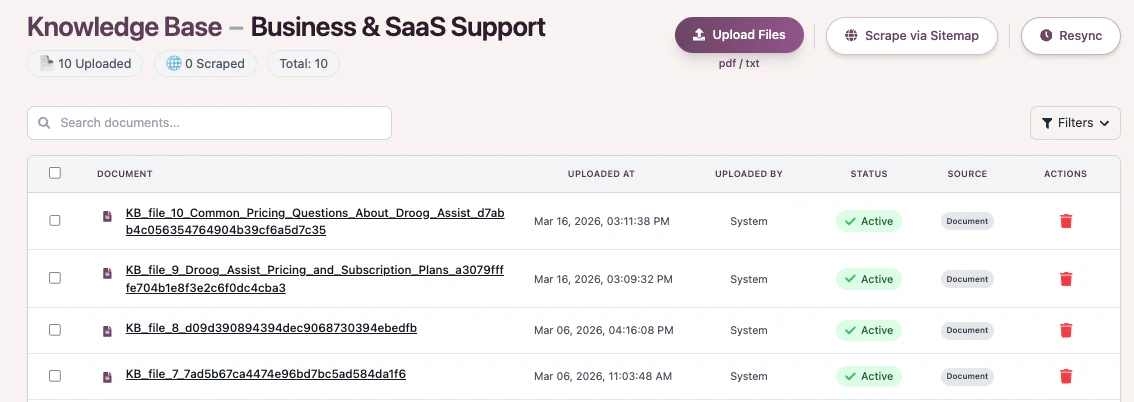 Droog reads through all of it, breaks it into small, meaningful sections, and stores it in a way that makes it easy to search later. This happens automatically; you don't need to tag or organise anything manually.
This step only happens once per document. After that, your content is ready to be used immediately.
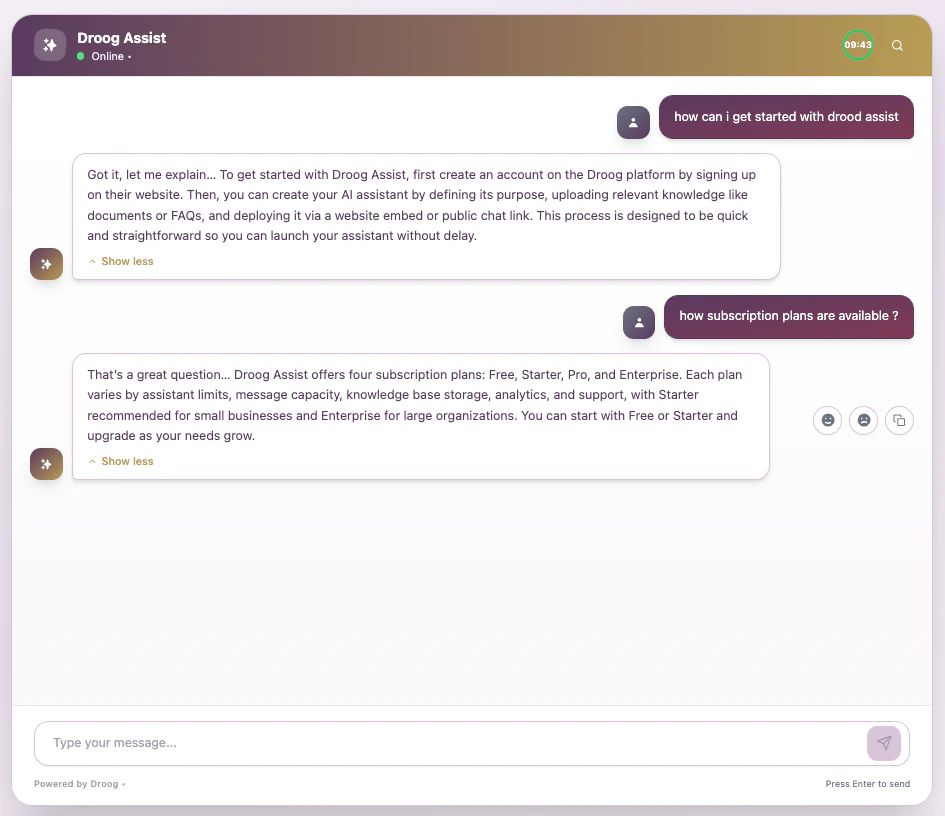
### 2. A user asks a question
When someone types a question into your assistant — for example, *"What documents do I need to apply?"* — Droog gets to work.
Droog reads through all of it, breaks it into small, meaningful sections, and stores it in a way that makes it easy to search later. This happens automatically; you don't need to tag or organise anything manually.
This step only happens once per document. After that, your content is ready to be used immediately.
### 2. A user asks a question
When someone types a question into your assistant — for example, *"What documents do I need to apply?"* — Droog gets to work.
 ### 3. Droog searches your content
Droog doesn't search using simple keyword matching. It understands the *meaning* behind the question and finds the sections of your documents that are most relevant, even if the user didn't use the same words.
For example, if your document says *"required supporting materials"* and the user asks about *"documents needed"*, Droog understands they're asking the same thing.
The more content you upload, the better Droog gets at finding the right answer. More documents mean more knowledge to draw from.
### 4. An answer is generated
Droog takes the most relevant sections it found and uses them to compose a clear, natural response. The answer is always based on what's in your content — nothing more, nothing less.
### 3. Droog searches your content
Droog doesn't search using simple keyword matching. It understands the *meaning* behind the question and finds the sections of your documents that are most relevant, even if the user didn't use the same words.
For example, if your document says *"required supporting materials"* and the user asks about *"documents needed"*, Droog understands they're asking the same thing.
The more content you upload, the better Droog gets at finding the right answer. More documents mean more knowledge to draw from.
### 4. An answer is generated
Droog takes the most relevant sections it found and uses them to compose a clear, natural response. The answer is always based on what's in your content — nothing more, nothing less.
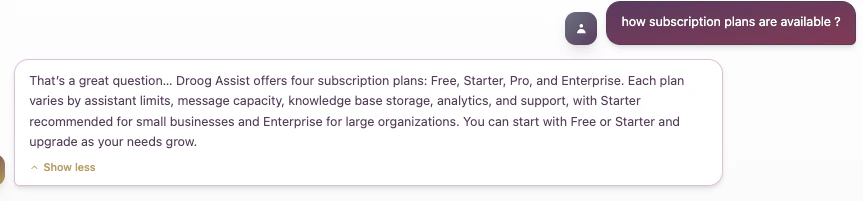 The whole process, from question to answer, takes just a few seconds.
## What happens if the answer isn't in your content?
If a user asks something that isn't covered in your uploaded documents, Droog will say it doesn't know, and escalate it as an active ticket based on the intent of the escalation being a handoff, knowledge gap, or out-of-scope question, rather than guessing or making something up.
This is a feature, not a limitation. It keeps your assistant honest and your users informed. You or your team can clearly be notified of the escalation and take actions respective to the requirement.
You can customise what your assistant says when it doesn't have an answer — for example, redirecting users to your support team or a contact form. See \*\*[Customise Behaviour](/guides/customising) to set this up.
## Keeping your assistant accurate over time
Your assistant is only as good as the content you give it. Here are a few simple habits that keep responses accurate:
Whenever your policies, pricing, or processes change, update your knowledge base. Your assistant will reflect the changes immediately.
Delete documents that are no longer accurate. Old content can lead to outdated answers, even if newer documents say something different.
If your website has helpful content like FAQs, product pages, and guides, add the URLs directly or the sitemap to select relevant URLs. Droog will read and index them automatically.
After uploading new content, use the built-in test console (Test Assist) to check that answers have updated correctly before users see them.
## Ready to build your knowledge base?
Learn how to add, update, and organise your documents.
Use the test console to check how your assistant responds before going live.
**Have a question?** Reach us at [contact@droog.io](mailto:hi@droog.io)
The whole process, from question to answer, takes just a few seconds.
## What happens if the answer isn't in your content?
If a user asks something that isn't covered in your uploaded documents, Droog will say it doesn't know, and escalate it as an active ticket based on the intent of the escalation being a handoff, knowledge gap, or out-of-scope question, rather than guessing or making something up.
This is a feature, not a limitation. It keeps your assistant honest and your users informed. You or your team can clearly be notified of the escalation and take actions respective to the requirement.
You can customise what your assistant says when it doesn't have an answer — for example, redirecting users to your support team or a contact form. See \*\*[Customise Behaviour](/guides/customising) to set this up.
## Keeping your assistant accurate over time
Your assistant is only as good as the content you give it. Here are a few simple habits that keep responses accurate:
Whenever your policies, pricing, or processes change, update your knowledge base. Your assistant will reflect the changes immediately.
Delete documents that are no longer accurate. Old content can lead to outdated answers, even if newer documents say something different.
If your website has helpful content like FAQs, product pages, and guides, add the URLs directly or the sitemap to select relevant URLs. Droog will read and index them automatically.
After uploading new content, use the built-in test console (Test Assist) to check that answers have updated correctly before users see them.
## Ready to build your knowledge base?
Learn how to add, update, and organise your documents.
Use the test console to check how your assistant responds before going live.
**Have a question?** Reach us at [contact@droog.io](mailto:hi@droog.io)