> ## Documentation Index
> Fetch the complete documentation index at: https://documentation.droog.io/llms.txt
> Use this file to discover all available pages before exploring further.
# Multi-Tenancy & Workspaces
> Understand how Droog keeps your organisation's data private, isolated, and fully under your control.
## Your workspace, your world
When you sign up for Droog Assist, you don't just get an account; you get your own **private workspace**.
Everything inside your workspace, your assistants, your documents, your users, and your conversations — belongs exclusively to your organisation. No one else can see it, access it, or share it.
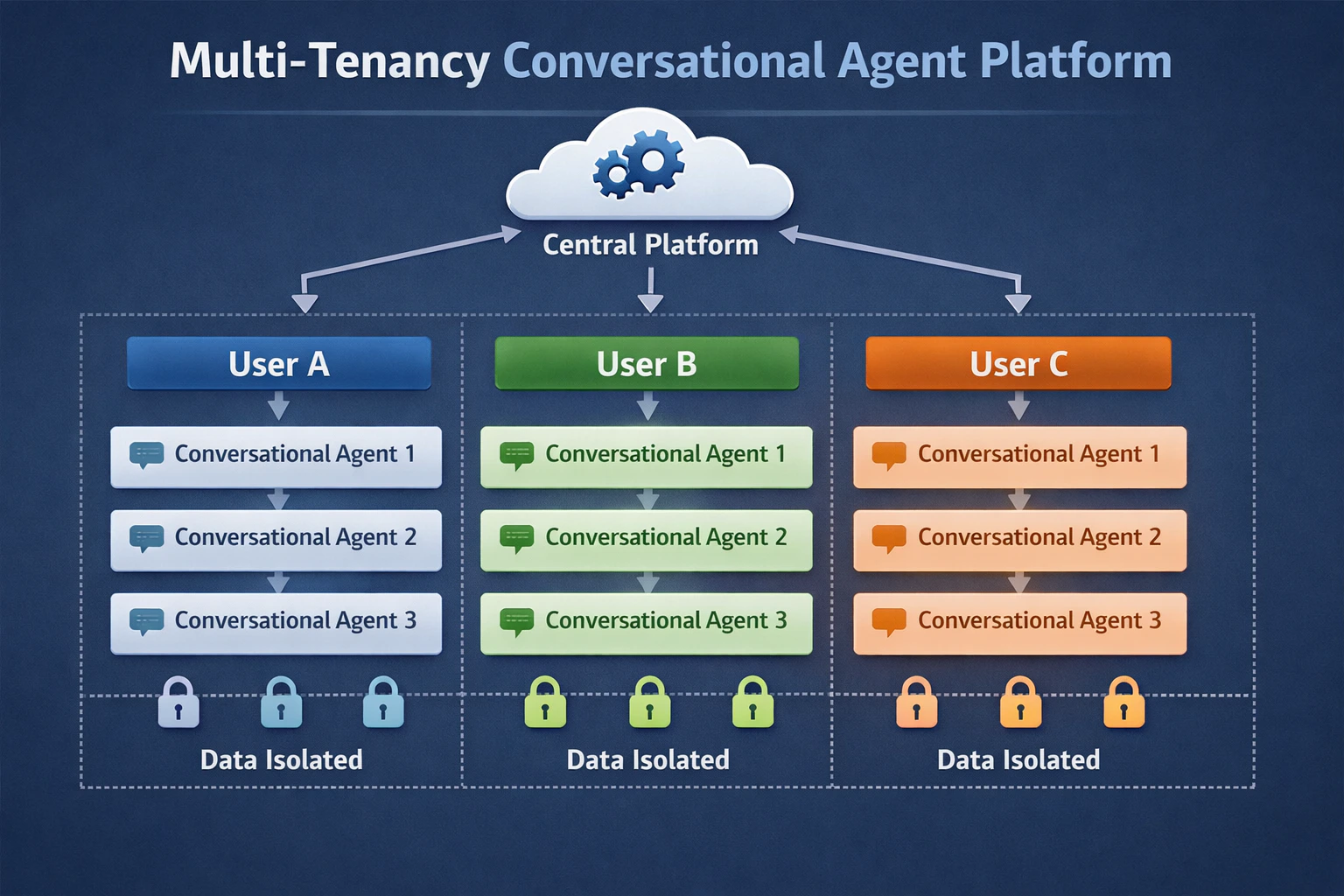
This is what we mean by **multi-tenancy**: many organisations using the same platform, each with complete separation and privacy.
 ## Think of it like a private office building
Imagine a large office building with many companies inside. Each company has its own floor, its own staff, its own filing cabinets, its own locked doors. The building (Droog's platform) is shared, but every floor (your workspace) is completely private.
*You cannot walk into another company's floor, nor can they walk into yours.*
That's exactly how Droog works.
Your data is never mixed with another organisation's data, not in storage, not in search, and not in any AI response.
## What lives inside your workspace
When you log into Droog, everything you see and manage belongs to your organisation alone.
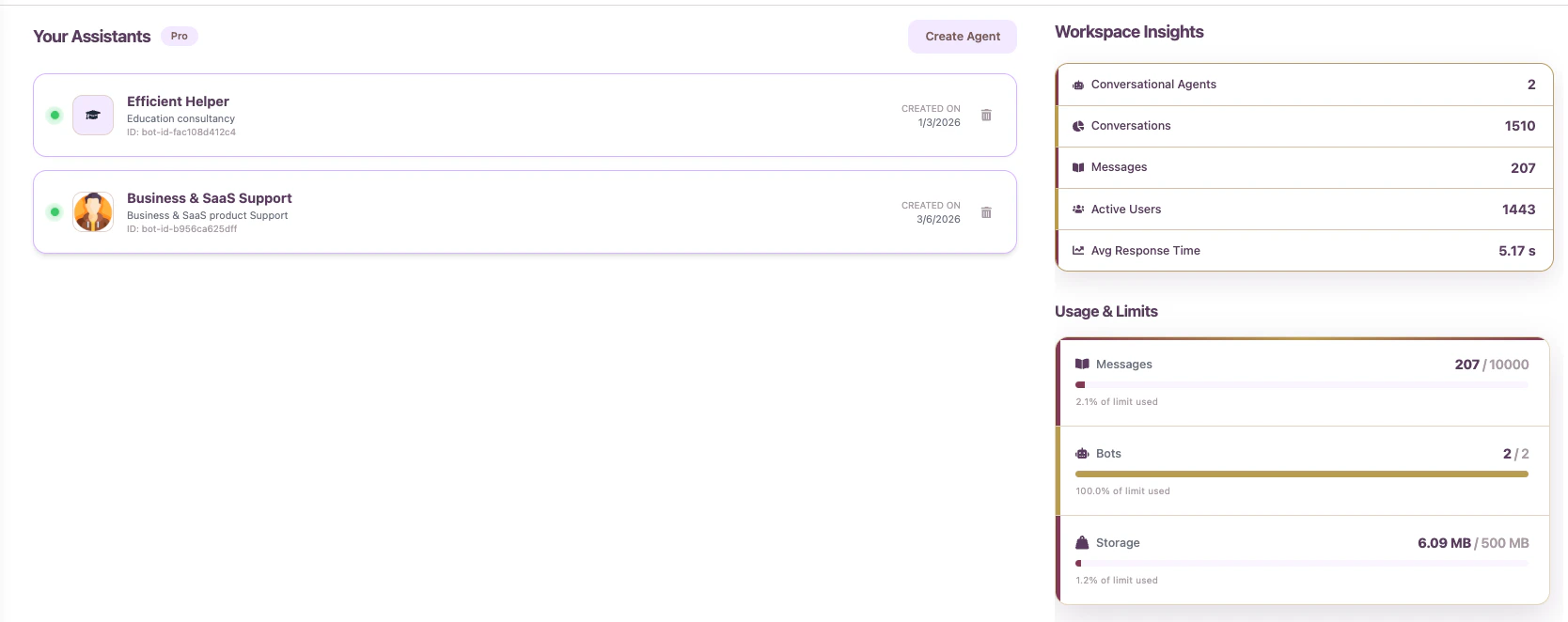
All the AI assistants you create live here. Each one is configured for a specific purpose, audience, or product.
All the documents, files, and websites you upload are stored exclusively in your workspace.
You control who in your organisation can log in, manage assistants, or view conversations.
All conversation data and usage reports are visible only to you.
## Managing your team *(in progress)*
You can invite colleagues to your workspace so they can help manage assistants, upload documents, or monitor conversations.
## Think of it like a private office building
Imagine a large office building with many companies inside. Each company has its own floor, its own staff, its own filing cabinets, its own locked doors. The building (Droog's platform) is shared, but every floor (your workspace) is completely private.
*You cannot walk into another company's floor, nor can they walk into yours.*
That's exactly how Droog works.
Your data is never mixed with another organisation's data, not in storage, not in search, and not in any AI response.
## What lives inside your workspace
When you log into Droog, everything you see and manage belongs to your organisation alone.
All the AI assistants you create live here. Each one is configured for a specific purpose, audience, or product.
All the documents, files, and websites you upload are stored exclusively in your workspace.
You control who in your organisation can log in, manage assistants, or view conversations.
All conversation data and usage reports are visible only to you.
## Managing your team *(in progress)*
You can invite colleagues to your workspace so they can help manage assistants, upload documents, or monitor conversations.
 Each person you invite gets their own login. You can:
* **Add** new team members at any time
* **Remove** access instantly if someone leaves
* **Assign roles** to control what each person can see and do
Only the **Organisation Admin** can invite or remove team members and change workspace settings.
## Multiple assistants, one workspace
Your workspace can hold more than one assistant. This means you can create different assistants for different purposes — all managed from the same place.
For example:
| Assistant | Purpose |
| -------------------- | --------------------------------------------- |
| **Support Bot** | Answers customer FAQs and product questions |
| **Onboarding Guide** | Helps new users get started with your product |
| **Internal Helper** | Answers questions from your own team |
| **Sales Assistant** | Engages website visitors and captures leads |
Each assistant has its own knowledge base, personality, and deployment settings. Changing one does not affect the others.
Start with one assistant, get it working well, then create more as your needs grow. You don't need to set everything up at once.
## Your workspace is yours — always
Your data is never used to train shared AI models. Your documents, your conversations, and your users' information stay inside your workspace and are never shared with other organisations on the platform.
Each person you invite gets their own login. You can:
* **Add** new team members at any time
* **Remove** access instantly if someone leaves
* **Assign roles** to control what each person can see and do
Only the **Organisation Admin** can invite or remove team members and change workspace settings.
## Multiple assistants, one workspace
Your workspace can hold more than one assistant. This means you can create different assistants for different purposes — all managed from the same place.
For example:
| Assistant | Purpose |
| -------------------- | --------------------------------------------- |
| **Support Bot** | Answers customer FAQs and product questions |
| **Onboarding Guide** | Helps new users get started with your product |
| **Internal Helper** | Answers questions from your own team |
| **Sales Assistant** | Engages website visitors and captures leads |
Each assistant has its own knowledge base, personality, and deployment settings. Changing one does not affect the others.
Start with one assistant, get it working well, then create more as your needs grow. You don't need to set everything up at once.
## Your workspace is yours — always
Your data is never used to train shared AI models. Your documents, your conversations, and your users' information stay inside your workspace and are never shared with other organisations on the platform.
 ## What's next?
Set up an assistant inside your workspace in minutes.
Upload the content your assistants will use to answer questions.
**Have a question?** Reach us at [contact@droog.io](mailto:hi@droog.io)
## What's next?
Set up an assistant inside your workspace in minutes.
Upload the content your assistants will use to answer questions.
**Have a question?** Reach us at [contact@droog.io](mailto:hi@droog.io)