> ## Documentation Index
> Fetch the complete documentation index at: https://documentation.droog.io/llms.txt
> Use this file to discover all available pages before exploring further.
# Managing Your Knowledge Base
> Learn how to add, update, and organise the content that powers your assistant's answers.
## Your assistant knows what you teach it
Your assistant doesn't come with pre-loaded answers. It learns from the content you provide, your documents, your website pages, your guides, and your policies.
The **Knowledge Base** is where all of that content lives. The better your knowledge base, the better your assistant's answers.
This page explains how to build and maintain it.
 ## What you can upload
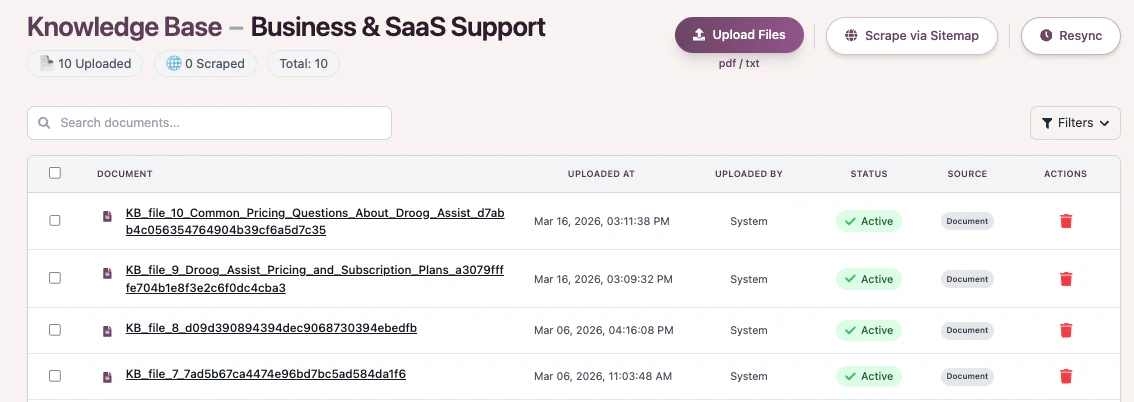
Droog accepts a wide range of content types. You can mix and match; most organisations use a combination.
Product guides, brochures, policy documents
Internal handbooks, process documents, FAQs
Plain text content, release notes, support articles
Paste any public webpage, Droog reads and indexes it automatically
Add an entire website at once by submitting its sitemap link
When importing content from websites or external sources, ensure you have the right to use that content. Always follow applicable copyright and data usage guidelines.
## How to add content
### Upload a file
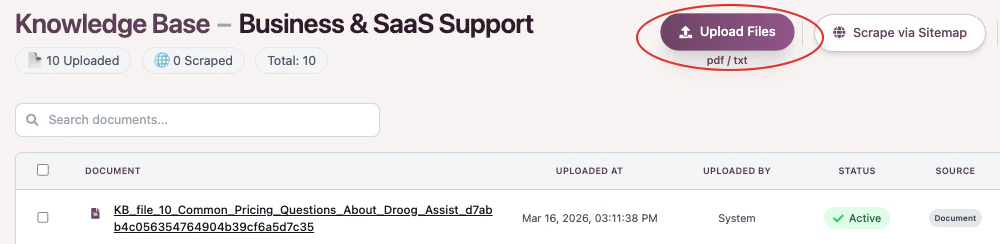
1. Go to your assistant's **Knowledge** tab from the dashboard
2. Click **Upload**
3. Select the file from your computer
4. Wait for the status to show `Completed` and `Active`
## What you can upload
Droog accepts a wide range of content types. You can mix and match; most organisations use a combination.
Product guides, brochures, policy documents
Internal handbooks, process documents, FAQs
Plain text content, release notes, support articles
Paste any public webpage, Droog reads and indexes it automatically
Add an entire website at once by submitting its sitemap link
When importing content from websites or external sources, ensure you have the right to use that content. Always follow applicable copyright and data usage guidelines.
## How to add content
### Upload a file
1. Go to your assistant's **Knowledge** tab from the dashboard
2. Click **Upload**
3. Select the file from your computer
4. Wait for the status to show `Completed` and `Active`
 ### Add a website URL
1. Click **Scrape via Sitemap**
2. Paste the full web address (e.g. `https://yourwebsite.com/faqs`)
3. Droog will visit the page, read its content, and add it to your knowledge base
### Add an entire website via sitemap
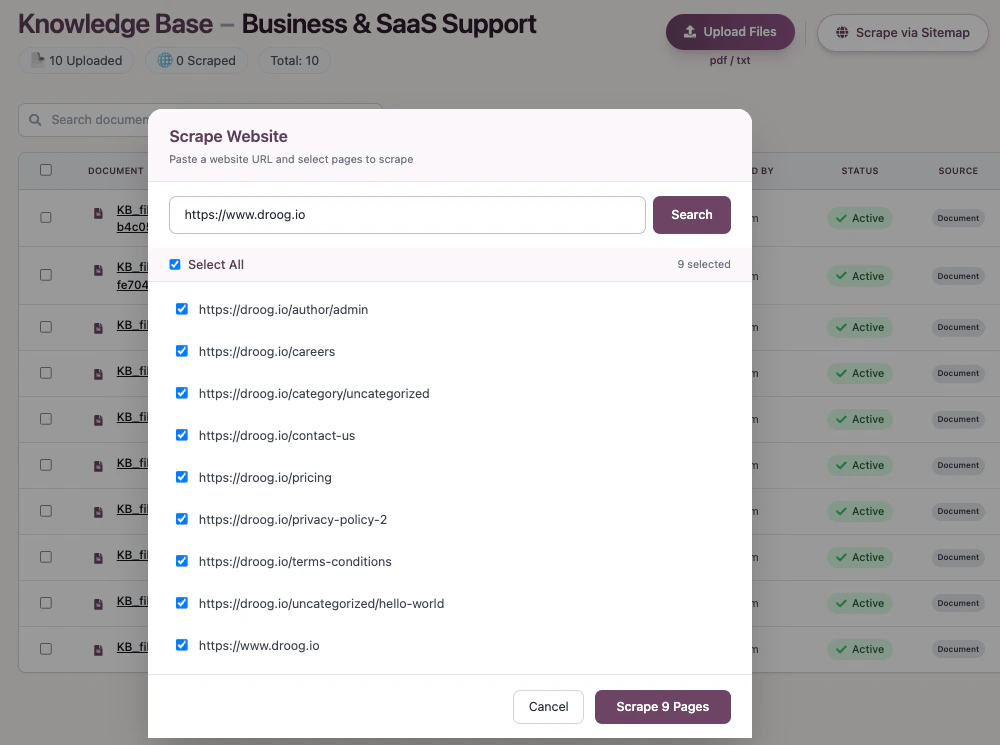
1. Click **Scrape via Sitemap**
2. Paste your sitemap URL (e.g. `https://yourwebsite.com/sitemap.xml`) or (e.g. `https://yourwebsite.com`)
3. Droog will index all the pages listed in the sitemap automatically. You can select individual or multiple pages and add them to your knowledge base
### Add a website URL
1. Click **Scrape via Sitemap**
2. Paste the full web address (e.g. `https://yourwebsite.com/faqs`)
3. Droog will visit the page, read its content, and add it to your knowledge base
### Add an entire website via sitemap
1. Click **Scrape via Sitemap**
2. Paste your sitemap URL (e.g. `https://yourwebsite.com/sitemap.xml`) or (e.g. `https://yourwebsite.com`)
3. Droog will index all the pages listed in the sitemap automatically. You can select individual or multiple pages and add them to your knowledge base
 Always wait for documents to show a `Active` status before testing your assistant. If you test while content is still processing, answers may be incomplete or inaccurate.
## Understanding document status
After uploading, each document goes through a short processing stage. Here's what each status means:
| Status | What it means |
| ------------------ | ------------------------------------------------------------------------------- |
| `Processing` | Droog is reading and preparing your content — this usually takes under a minute |
| `Completed/Active` | Content is ready, and your assistant can now use it to answer questions |
| `Failed` | Something went wrong — check the file format and try uploading again |
If a document repeatedly shows `Failed`Try exporting it as a plain PDF and uploading that version instead. Complex formatting in Word documents can occasionally cause issues.
## Updating your content
Your knowledge base is not set-and-forget. Keeping it up to date is the single most important thing you can do to keep your assistant accurate.
### When to update
* Your **pricing or plans** have changed
* You launch a **new product or feature**
* Your **policies or processes** are updated
* A document contains **outdated information**
### How to update
You have two options:
**Replace a document** — Delete the old version and upload the new one. Your assistant will immediately use the updated content.
**Edit a URL source** — If you added a webpage, you can schedule a frequency to re-scrape it at any time to pull in the latest version of that page. `In progress`
Always wait for documents to show a `Active` status before testing your assistant. If you test while content is still processing, answers may be incomplete or inaccurate.
## Understanding document status
After uploading, each document goes through a short processing stage. Here's what each status means:
| Status | What it means |
| ------------------ | ------------------------------------------------------------------------------- |
| `Processing` | Droog is reading and preparing your content — this usually takes under a minute |
| `Completed/Active` | Content is ready, and your assistant can now use it to answer questions |
| `Failed` | Something went wrong — check the file format and try uploading again |
If a document repeatedly shows `Failed`Try exporting it as a plain PDF and uploading that version instead. Complex formatting in Word documents can occasionally cause issues.
## Updating your content
Your knowledge base is not set-and-forget. Keeping it up to date is the single most important thing you can do to keep your assistant accurate.
### When to update
* Your **pricing or plans** have changed
* You launch a **new product or feature**
* Your **policies or processes** are updated
* A document contains **outdated information**
### How to update
You have two options:
**Replace a document** — Delete the old version and upload the new one. Your assistant will immediately use the updated content.
**Edit a URL source** — If you added a webpage, you can schedule a frequency to re-scrape it at any time to pull in the latest version of that page. `In progress`
 ## Removing content
If a document is outdated or no longer relevant, remove it.
1. Find the document in your **Knowledge** tab
2. Click the **delete icon** next to it (You can also multi-select items for deletion)
3. Confirm deletion
Deleting a document removes it from your assistant's knowledge immediately. If the document contained answers to common questions, your assistant will no longer be able to answer those questions until you upload updated content.
## Tips for a great knowledge base
Upload content that directly answers the questions your users actually ask. Broad, general documents are less useful than targeted, specific ones.
Review your knowledge base once a month. Remove anything outdated and add any new content your users might need.
Well-formatted documents produce better answers. Avoid scanned images of text — Droog reads text content, not images within PDFs.
After adding or removing content, spend a few minutes testing your assistant to make sure it's responding correctly.
***
## What's next?
After updating your knowledge base, test your assistant to check its responses.
Control how your assistant responds when it can't find an answer.
**Have a question?** Reach us at [contact@droog.io](mailto:hi@droog.io)
## Removing content
If a document is outdated or no longer relevant, remove it.
1. Find the document in your **Knowledge** tab
2. Click the **delete icon** next to it (You can also multi-select items for deletion)
3. Confirm deletion
Deleting a document removes it from your assistant's knowledge immediately. If the document contained answers to common questions, your assistant will no longer be able to answer those questions until you upload updated content.
## Tips for a great knowledge base
Upload content that directly answers the questions your users actually ask. Broad, general documents are less useful than targeted, specific ones.
Review your knowledge base once a month. Remove anything outdated and add any new content your users might need.
Well-formatted documents produce better answers. Avoid scanned images of text — Droog reads text content, not images within PDFs.
After adding or removing content, spend a few minutes testing your assistant to make sure it's responding correctly.
***
## What's next?
After updating your knowledge base, test your assistant to check its responses.
Control how your assistant responds when it can't find an answer.
**Have a question?** Reach us at [contact@droog.io](mailto:hi@droog.io)