> ## Documentation Index
> Fetch the complete documentation index at: https://documentation.droog.io/llms.txt
> Use this file to discover all available pages before exploring further.
# Testing Your Assistant
> Check how your assistant responds before your users ever see it, and catch issues early.
## Test before you go live
Before your assistant is seen by real users, it's worth spending a few minutes testing it yourself. This helps you catch gaps in your knowledge base, spot unexpected responses, and build confidence that your assistant is ready.
Droog has a built-in test console so you can do this without any technical setup.
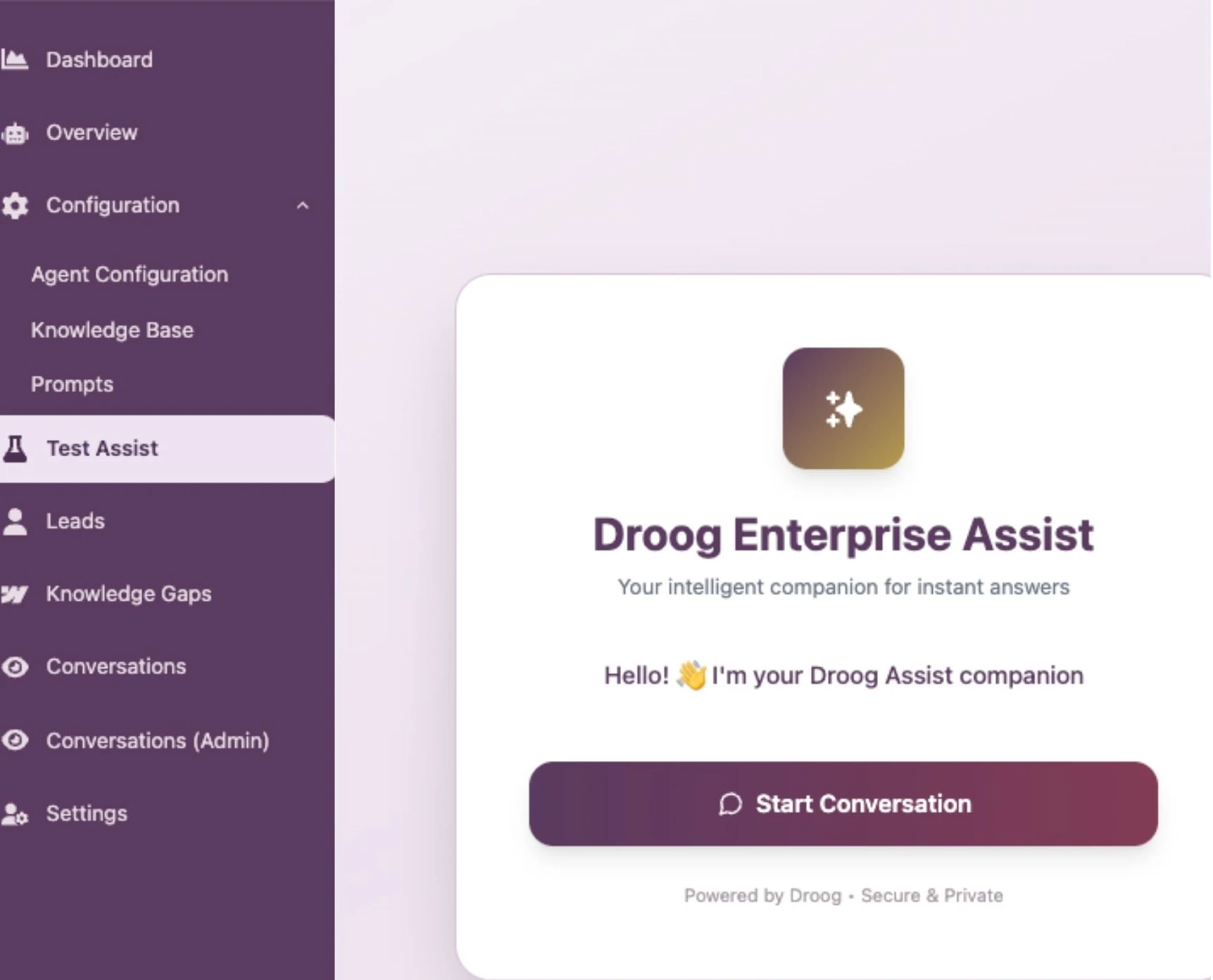 ## How to open the test console
1. Go to your **Dashboard** and open the assistant you want to test
2. Click the **Test Assist** tab
3. Click on **Start Conversation**
4. Type a question in the chat box, just like a real user would
5. Review the response
That's it. No special configuration needed.
The test console uses your live knowledge base. This means any documents you've added or removed will be reflected immediately in test responses.
## What to test
The goal of testing is to make sure your assistant answers correctly, stays on topic, and handles edge cases gracefully.
Here are the key areas to check:
### Core questions — does it know what it should?
Start with the most common questions your users are likely to ask. These are the questions your knowledge base was built to answer
Ask yourself:
* Is the answer **accurate**?
* Is the answer **complete** — or is something important missing?
* Does it sound like it fits your brand?
### Out-of-scope questions, does it stay in its lane?
Try asking your assistant something it shouldn't answer, something completely unrelated to its purpose.
A well-configured assistant should politely decline and redirect the user, rather than trying to answer something it has no business answering.
If your assistant answers out-of-scope questions confidently, revisit your **Bot Identity and Mission** settings and add a constraint like: *"Only answer questions related to \[your topic]. For anything else, direct users to \[your support contact]."*
### Unknown / relevant questions what happens when it doesn't know?
Ask something that isn't covered in your knowledge base at all.
Your assistant should acknowledge that it doesn't have that information, not guess or make something up and instantly record the user's query as an escalation, where the human agents can review and revert to the user.
| What you want to see | What to do if you don't |
| --------------------------------------------------------------------- | ---------------------------------------------------------------------------------------------------- |
| "I don't have that information — please contact our team at \[email]" | Upload a document covering that topic, or add a fallback instruction in your assistant's constraints |
### Follow-up questions → does it remember the conversation?
Droog assistants support multi-turn conversations — meaning the assistant remembers what was said earlier in the same chat.
Test this by asking a follow-up question that only makes sense in context:
> *"What documents do I need to apply?"* *(assistant replies)* *"How long does it take to process them?"*
The assistant should understand that "them" refers to the documents mentioned earlier, not start from scratch.
## How to open the test console
1. Go to your **Dashboard** and open the assistant you want to test
2. Click the **Test Assist** tab
3. Click on **Start Conversation**
4. Type a question in the chat box, just like a real user would
5. Review the response
That's it. No special configuration needed.
The test console uses your live knowledge base. This means any documents you've added or removed will be reflected immediately in test responses.
## What to test
The goal of testing is to make sure your assistant answers correctly, stays on topic, and handles edge cases gracefully.
Here are the key areas to check:
### Core questions — does it know what it should?
Start with the most common questions your users are likely to ask. These are the questions your knowledge base was built to answer
Ask yourself:
* Is the answer **accurate**?
* Is the answer **complete** — or is something important missing?
* Does it sound like it fits your brand?
### Out-of-scope questions, does it stay in its lane?
Try asking your assistant something it shouldn't answer, something completely unrelated to its purpose.
A well-configured assistant should politely decline and redirect the user, rather than trying to answer something it has no business answering.
If your assistant answers out-of-scope questions confidently, revisit your **Bot Identity and Mission** settings and add a constraint like: *"Only answer questions related to \[your topic]. For anything else, direct users to \[your support contact]."*
### Unknown / relevant questions what happens when it doesn't know?
Ask something that isn't covered in your knowledge base at all.
Your assistant should acknowledge that it doesn't have that information, not guess or make something up and instantly record the user's query as an escalation, where the human agents can review and revert to the user.
| What you want to see | What to do if you don't |
| --------------------------------------------------------------------- | ---------------------------------------------------------------------------------------------------- |
| "I don't have that information — please contact our team at \[email]" | Upload a document covering that topic, or add a fallback instruction in your assistant's constraints |
### Follow-up questions → does it remember the conversation?
Droog assistants support multi-turn conversations — meaning the assistant remembers what was said earlier in the same chat.
Test this by asking a follow-up question that only makes sense in context:
> *"What documents do I need to apply?"* *(assistant replies)* *"How long does it take to process them?"*
The assistant should understand that "them" refers to the documents mentioned earlier, not start from scratch.
## Common issues and how to fix them
Likely cause → The relevant document wasn't uploaded, or the content is too brief
Fix → Upload more detailed content covering that topic
Likely cause → Outdated document is still in the knowledge base
Fix → Delete the old document and upload the correct version
Likely cause → No constraints defined
Fix → Add topic constraints in the **Extra Intelligence** field
Likely cause → Document is still processing
Fix → Wait for the document status to show `Active`. Press the `Re-sync` In the knowledge base, then test again
Likely cause → Personality settings are too generic
Fix → Revisit **Voice and Personality** and add more specific tone guidance
## Test after every change
Testing isn't a one-time step. Anytime you make a change to your assistant or knowledge base, it's worth running a quick test to ensure everything still works as expected.
Check that the assistant can now answer questions about the new content.
Confirm the assistant handles questions about deleted content gracefully.
Verify that tone, constraints, and behaviour changes are reflected correctly.
Always do a final test run before activating or reactivating a live assistant.
***
## What's next?
Once you're happy with how your assistant responds, deploy it to your website.
After going live, track how real users are interacting with your assistant.
**Have a question?** Reach us at [contact@droog.io](mailto:hi@droog.io)