
Overview
Droog Assist lets you deploy a conversational AI assistant trained on your own content — no code required. In three steps, you’ll create an account, configure your assistant, and embed it live on your website.1
Create your account and organisation
2
Configure your assistant and knowledge base
3
Publish and embed
Step 1 — Create your account and organisation
Sign up at app.droog.io using your organisation’s email address.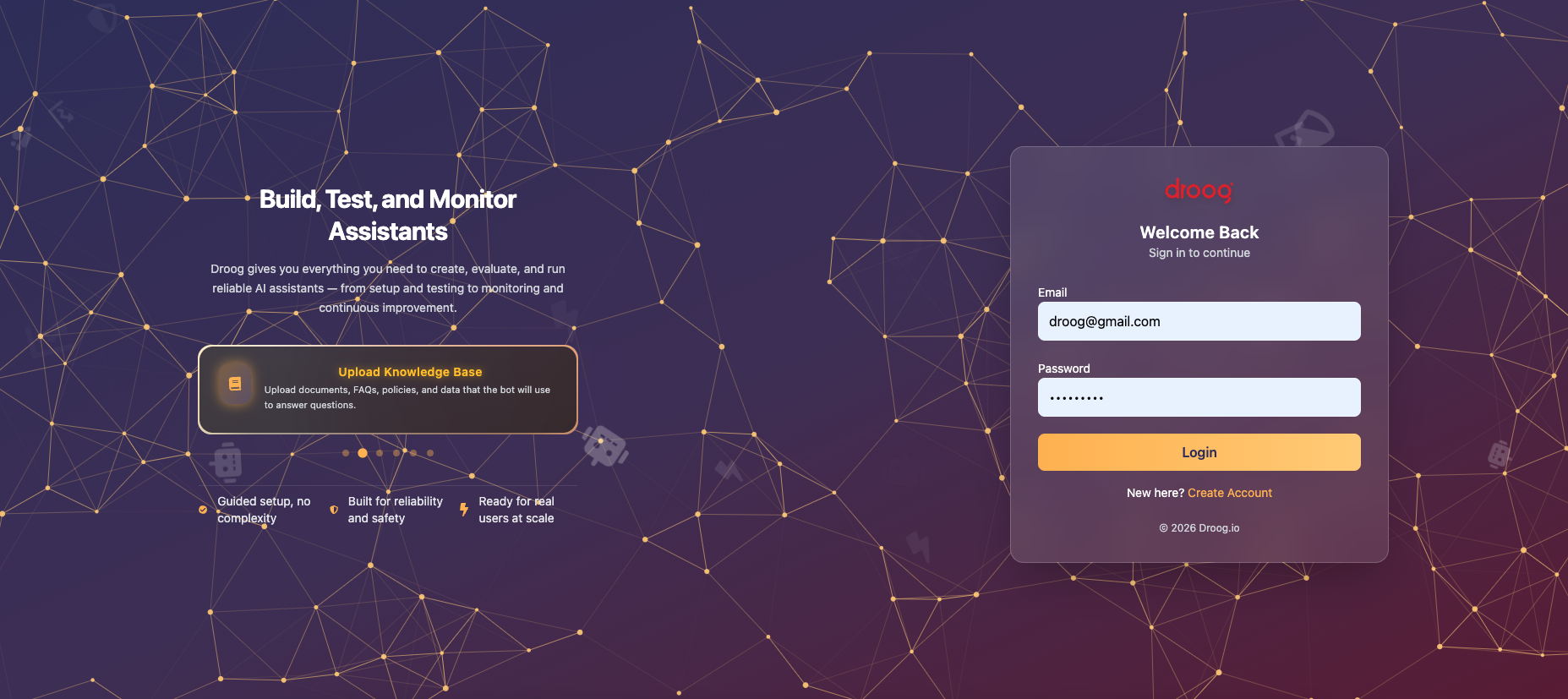
- Organisation name — this becomes your isolated tenant workspace
- Primary email — a one-time password (OTP) will be sent here for verification
- Password — set after email verification is complete
Your account starts on the Trial plan with limited provisions. Each organisation gets a fully isolated workspace — users, assistants, and knowledge bases are never shared across tenants.
Step 2 — Configure your assistant and knowledge base
From your dashboard, click Create Agent. This opens a guided setup wizard.Assistant identity
Fill in the following fields to define how your assistant behaves:All required fields must be filled before proceeding. The more specific your Bot Identity and Mission, the better your assistant will perform out of the box.
Build your knowledge base
Your assistant answers questions using the content you upload here. You can also skip this step and add knowledge later from the Knowledge tab in your dashboard. Supported file types:DOCX
TXT / Markdown
HTML
Web URL
Sitemap
When importing content from websites, ensure you have the rights to use that content. Always follow applicable copyright and data usage guidelines.
Step 3 — Publish and embed
Publish your assistant
Click Publish from your assistant dashboard. This changes your assistant’s status fromdraft → published and makes it accessible to users.
Embed on your website
Once published, navigate to the Deploy tab. Copy your unique embed snippet and paste it before the closing</body> tag on any webpage where you want the assistant to appear.
data-widget-id and data-bot-id with the actual values shown in your Deploy tab. These are unique to each assistant you create.
Your assistant is now live. Open your website, and the chat widget should appear in the bottom-right corner.
What’s next?
Test your assistant
Use the built-in test console to evaluate responses before going live with real users.
Manage your knowledge base
Add, update, or remove documents and URLs from your assistant’s knowledge.
Customise behaviour
Fine-tune tone, constraints, fallback responses, and escalation rules.
Configure a custom domain
Serve your assistant from your own domain with full TLS support.
Need help? Reach us at contact@droog.io or visit your dashboard to open a support request.