
Create an assistant in minutes
Your assistant can be ready in just a few minutes. Once created, you can train it with your knowledge and deploy it for users.Step 1 — Open Assistant Dashboard
From your main dashboard, click Create Agent to start creating a new assistant.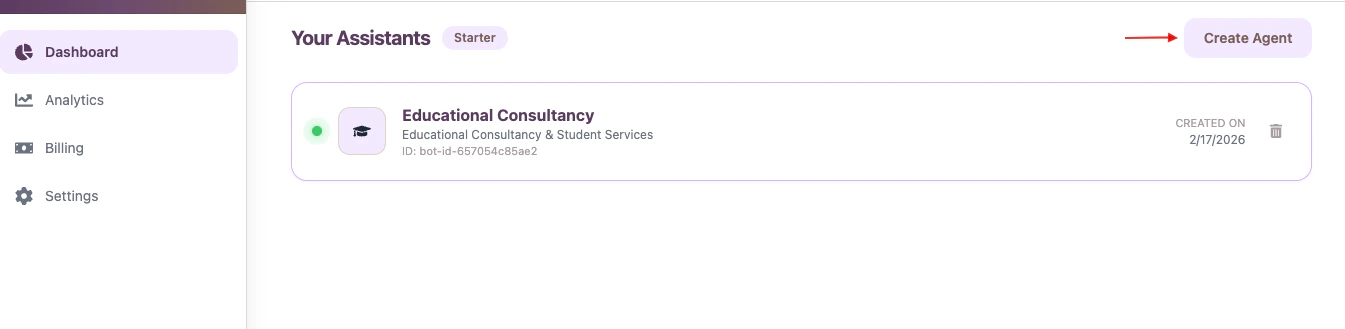
Step 2 — Create Assistant
Creating an assistant is guided through a simple setup flow. When you click Create Agent, Droog opens a wizard that helps configure your assistant’s purpose, personality, and behavior. Follow the steps below:1. Select Industry
Choose the industry or domain that best matches your assistant’s purpose. You can also manually describe your domain if it is not listed.2. Voice and Personality
Select how your assistant should communicate, for example, friendly, professional, or technical. This helps shape how responses sound to your users.3. Core Mission
Define the primary role of the assistant. Examples include:- Customer support assistant
- Lead capture assistant
- Product guide
- Internal knowledge assistant
4. Constraints and Additional Rules
You can define rules or guidelines your assistant should follow, such as:- Follow company best practices
- Avoid discussing competitors
- Redirect billing questions to support
5. Select Avatar (Optional)
You may upload or select an avatar image for your assistant. This helps personalise the assistant experience. Once complete, click Create Agent.After clicking Create Agent, Droog automatically prepares your assistant using the information you provided.
6. Upload Knowledge Sources
Your assistant needs knowledge to answer questions accurately. You can upload documents such as:- PDF files
- Text files
- Markdown files
- Word documents
7. Launch & Activate Assistant
This is the final step of the setup wizard. Review your assistant details and activate it. Once activated, your assistant becomes available for testing and deployment.Assistant Created Successfully
After completion, you will be redirected to the dashboard where your new assistant appears. Click the assistant to:- Modify settings
- Add or update knowledge
- Customize responses
- Deploy the assistant