
Your assistant knows what you teach it
Your assistant doesn’t come with pre-loaded answers. It learns from the content you provide, your documents, your website pages, your guides, and your policies. The Knowledge Base is where all of that content lives. The better your knowledge base, the better your assistant’s answers. This page explains how to build and maintain it.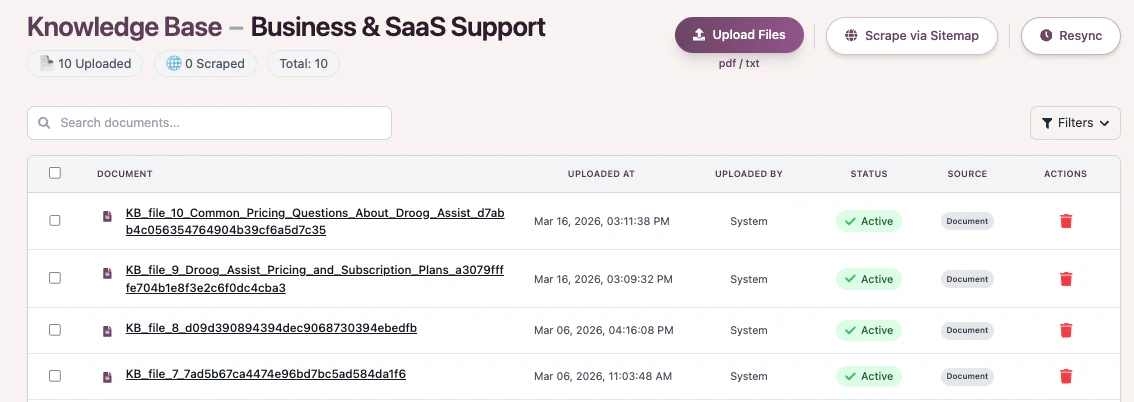
The Knowledge Base tab in your dashboard — where all your uploaded content is stored and managed
What you can upload
Droog accepts a wide range of content types. You can mix and match; most organisations use a combination.PDF Files
Product guides, brochures, policy documents
Word Documents
Internal handbooks, process documents, FAQs
Text & Markdown Files
Plain text content, release notes, support articles
Website URLs
Paste any public webpage, Droog reads and indexes it automatically
Sitemaps
Add an entire website at once by submitting its sitemap link
When importing content from websites or external sources, ensure you have the right to use that content. Always follow applicable copyright and data usage guidelines.
How to add content
Upload a file
- Go to your assistant’s Knowledge tab from the dashboard
- Click Upload
- Select the file from your computer
- Wait for the status to show
CompletedandActive
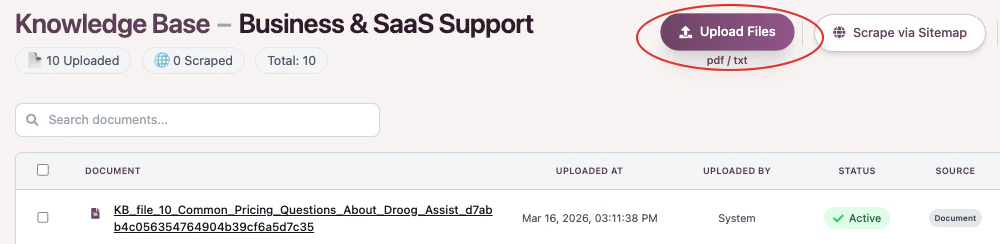
Uploading a document — drag and drop or browse to select files from your computer
Add a website URL
- Click Scrape via Sitemap
- Paste the full web address (e.g.
https://yourwebsite.com/faqs) - Droog will visit the page, read its content, and add it to your knowledge base
Add an entire website via sitemap
- Click Scrape via Sitemap
- Paste your sitemap URL (e.g.
https://yourwebsite.com/sitemap.xml) or (e.g.https://yourwebsite.com) - Droog will index all the pages listed in the sitemap automatically. You can select individual or multiple pages and add them to your knowledge base
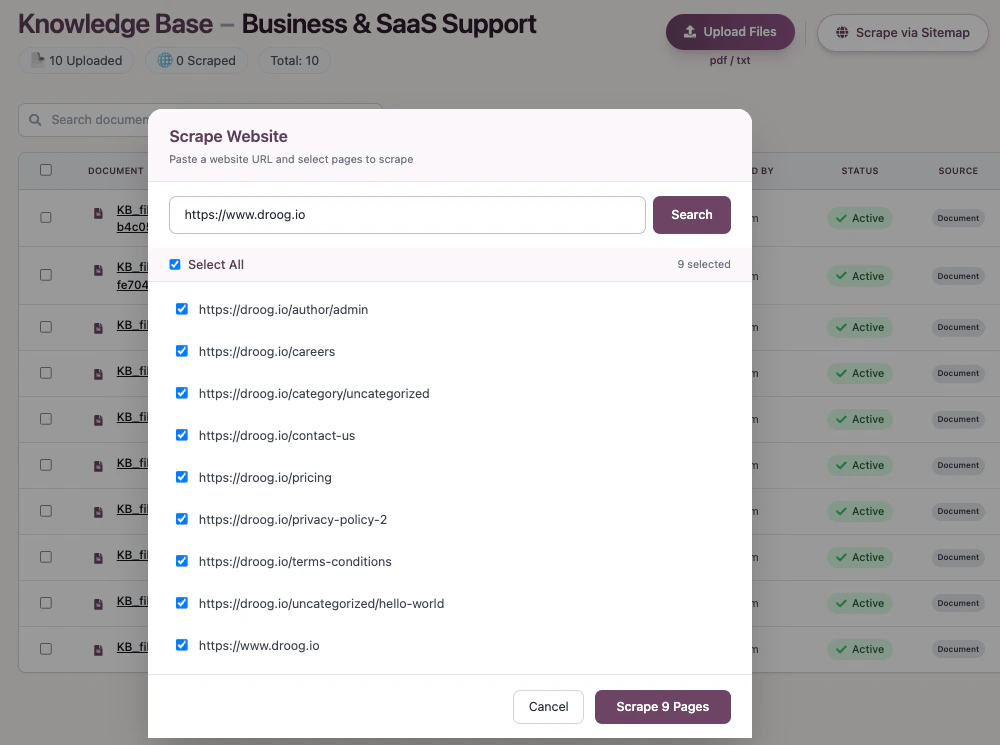
Uploading a web URL — enter a specific URL page or the sitemap
Understanding document status
After uploading, each document goes through a short processing stage. Here’s what each status means:Updating your content
Your knowledge base is not set-and-forget. Keeping it up to date is the single most important thing you can do to keep your assistant accurate.When to update
- Your pricing or plans have changed
- You launch a new product or feature
- Your policies or processes are updated
- A document contains outdated information
How to update
You have two options: Replace a document — Delete the old version and upload the new one. Your assistant will immediately use the updated content. Edit a URL source — If you added a webpage, you can schedule a frequency to re-scrape it at any time to pull in the latest version of that page.In progress

Managing existing documents — delete outdated files or re-sync URLs directly from the Knowledge tab
Removing content
If a document is outdated or no longer relevant, remove it.- Find the document in your Knowledge tab
- Click the delete icon next to it (You can also multi-select items for deletion)
- Confirm deletion
Tips for a great knowledge base
Be specific
Upload content that directly answers the questions your users actually ask. Broad, general documents are less useful than targeted, specific ones.
Keep it fresh
Review your knowledge base once a month. Remove anything outdated and add any new content your users might need.
Use clean, readable files
Well-formatted documents produce better answers. Avoid scanned images of text — Droog reads text content, not images within PDFs.
Test after every update
After adding or removing content, spend a few minutes testing your assistant to make sure it’s responding correctly.
What’s next?
Test your assistant
After updating your knowledge base, test your assistant to check its responses.
Customise behaviour
Control how your assistant responds when it can’t find an answer.
Have a question? Reach us at contact@droog.io