
Your assistant, on your website
Once your assistant is configured and tested, the final step is making it available to your users. Droog gives you a small snippet of code that you or anyone on your team who manages your website can paste in. The result is a chat widget that appears on your website, ready for visitors to use.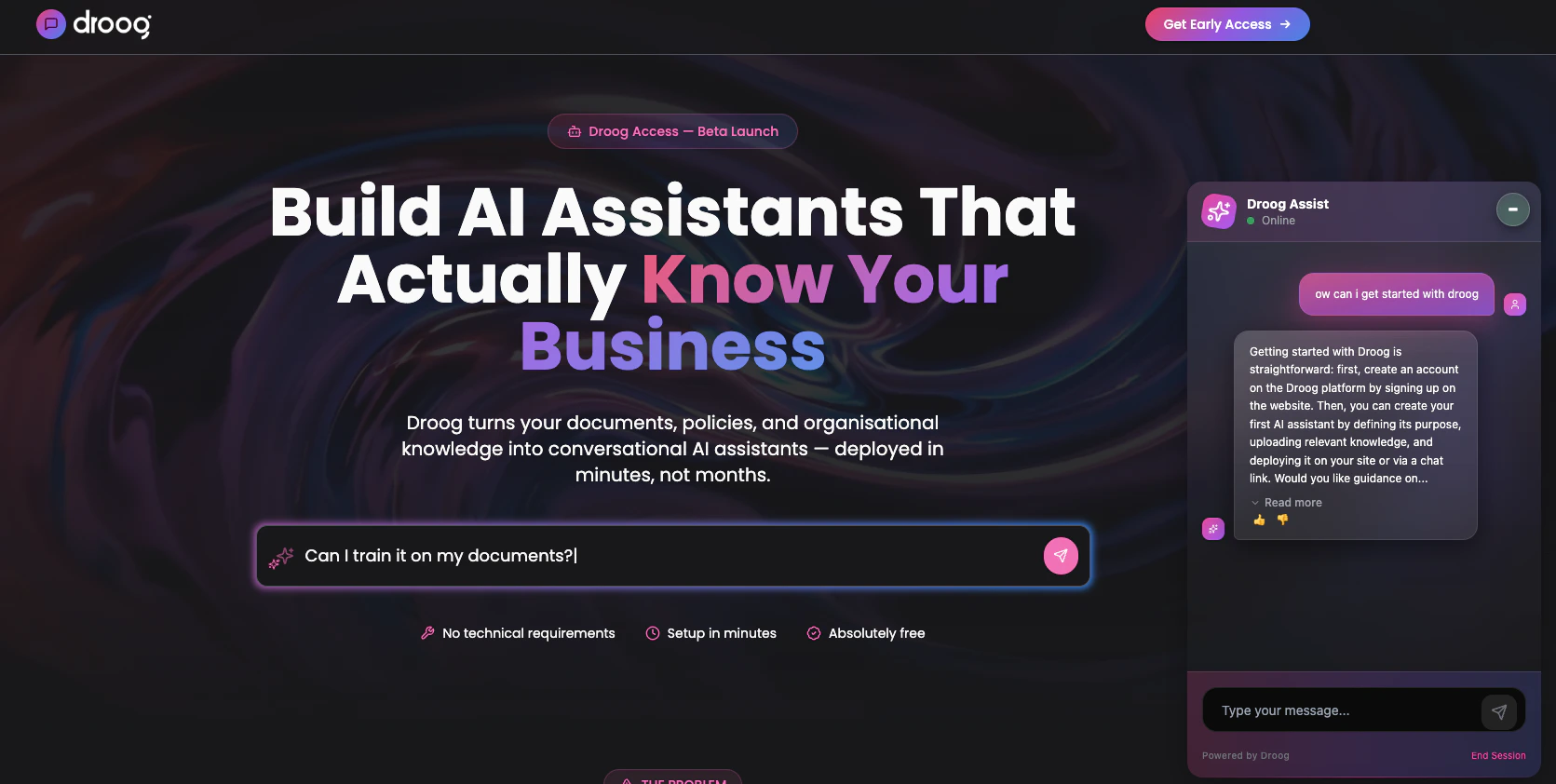
The Droog chat widget live on a website — appearing in the bottom-right corner, ready for visitors to interact with
Before you embed
Make sure your assistant is ready:1
Knowledge base is complete
All documents you want the assistant to use are uploaded and show a
Active status.2
The assistant has been tested
You’ve run through key questions in the test console and are happy with the responses.
3
Assistant is published
Your assistant’s status is set to
Published. A draft assistant will not respond to users.How to get your embed snippet
- Open your assistant from the Dashboard
- Click the **Assistant **you want to publish
- Navigate to settings and scroll down
- Copy the embed snippet shown on the page
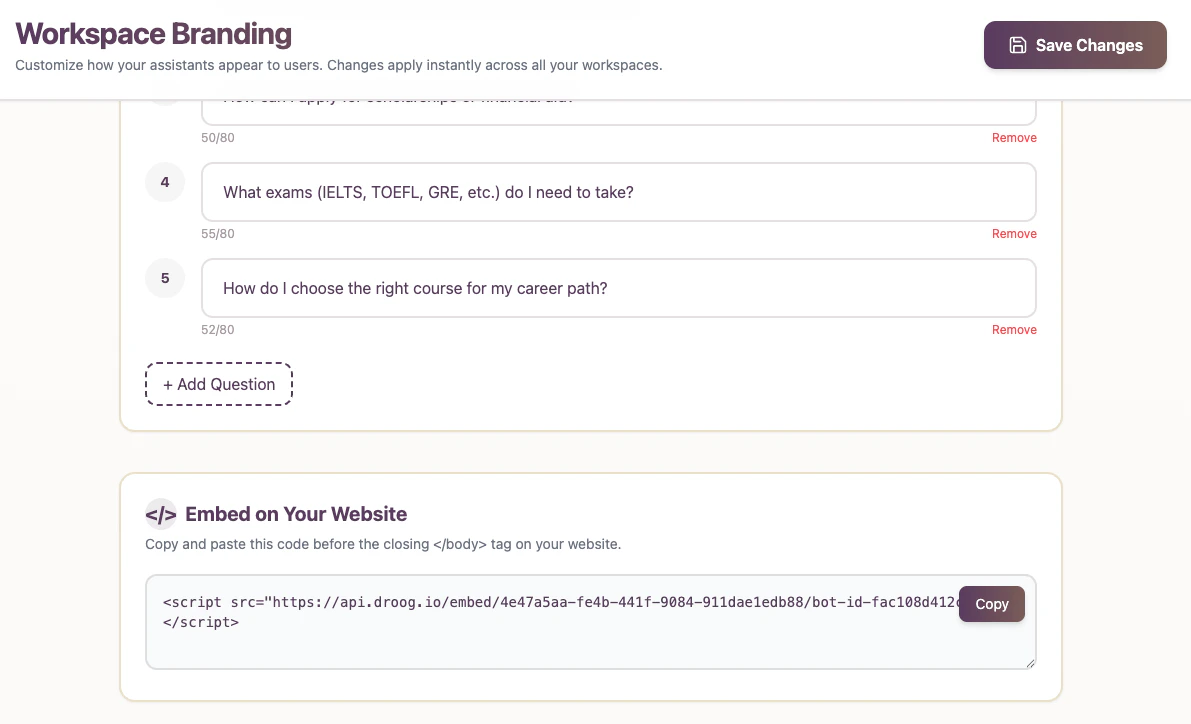
The Deploy tab — where you find your unique embed snippet ready to copy
Org_ID and Agent_ID Values are unique to your assistant. Use exactly the values shown in your Deploy tab — do not change them.
How to add it to your website
Paste the snippet just before the closing</body> tag on any page where you want the assistant to appear.

Where to paste the embed snippet in your website's HTML — just before the closing body tag
If you use a website builder
You don’t need to edit HTML directly. Most website platforms have a dedicated section for adding custom scripts:After embedding — what to expect
Once the snippet is added, visit your website. The Droog chat widget should appear in the bottom-right corner of the page (default) or wherever you desire to place the widget Click it to open the chat and send a test message to confirm it’s working correctly.If you see the chat bubble and receive a response, your assistant is live.
Controlling where the widget appears
By default, the widget appears on every page where you’ve added the snippet. If you only want it on specific pages — for example, just your support page or your pricing page — simply add the snippet only to those pages.Removing or pausing the assistant
To temporarily stop the assistant from appearing on your website, either:- Remove the snippet from your website’s HTML
- Unpublish the assistant from your Droog dashboard — the widget will stop responding without you needing to change any code
What’s next?
Monitor conversations
Once live, track how users are engaging with your assistant.
Customise behaviour
Adjust how your assistant handles edge cases, off-topic questions, and escalations.
Have a question about embedding? Reach us at contacti@droog.io