
The short version
When a user asks your assistant a question, Droog doesn’t guess. It searches through the content you’ve uploaded, finds the most relevant pieces, and uses that to craft a clear, accurate answer — all in seconds. Think of it like giving your assistant a filing cabinet full of your documents, and training it to find exactly the right page every time someone asks a question.Why this matters
Most AI assistants are trained on general internet knowledge. They sound confident, but they might give answers that are outdated, off-brand, or simply wrong for your specific business. Droog is different. Your assistant only answers from your content. If the answer isn’t in your knowledge base, it says so, rather than making something up. This makes Droog assistants:- ✅ Accurate — grounded in your actual documents
- ✅ Trustworthy — won’t invent facts or go off-topic
- ✅ Up to date — add new documents anytime to keep answers fresh
- ✅ On-brand — reflects your tone, terminology, and policies
How it works — step by step
Here’s what happens from the moment a user types a question to the moment they get an answer.1. You upload your content
You start by uploading your documents — PDFs, Word files, website URL pages, or any other content that contains the knowledge your assistant needs.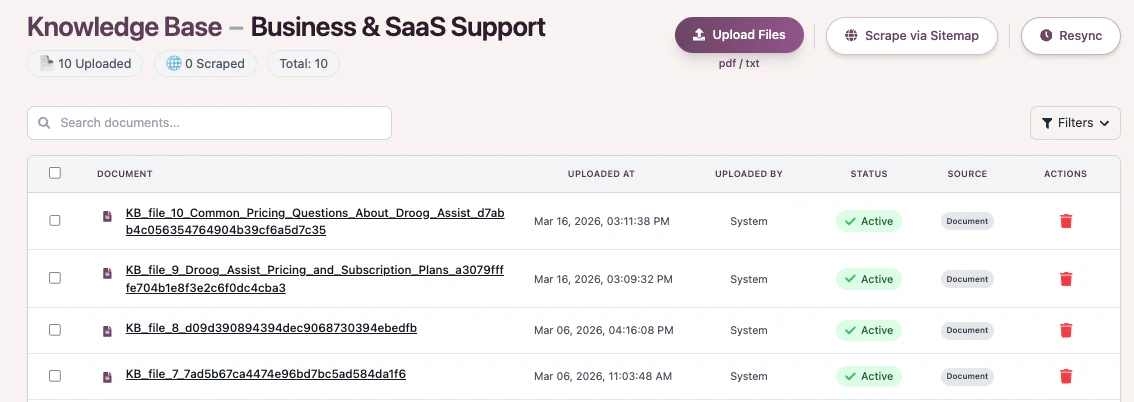
Upload documents through the Knowledge Base tab in your dashboard
This step only happens once per document. After that, your content is ready to be used immediately.
2. A user asks a question
When someone types a question into your assistant — for example, “What documents do I need to apply?” — Droog gets to work.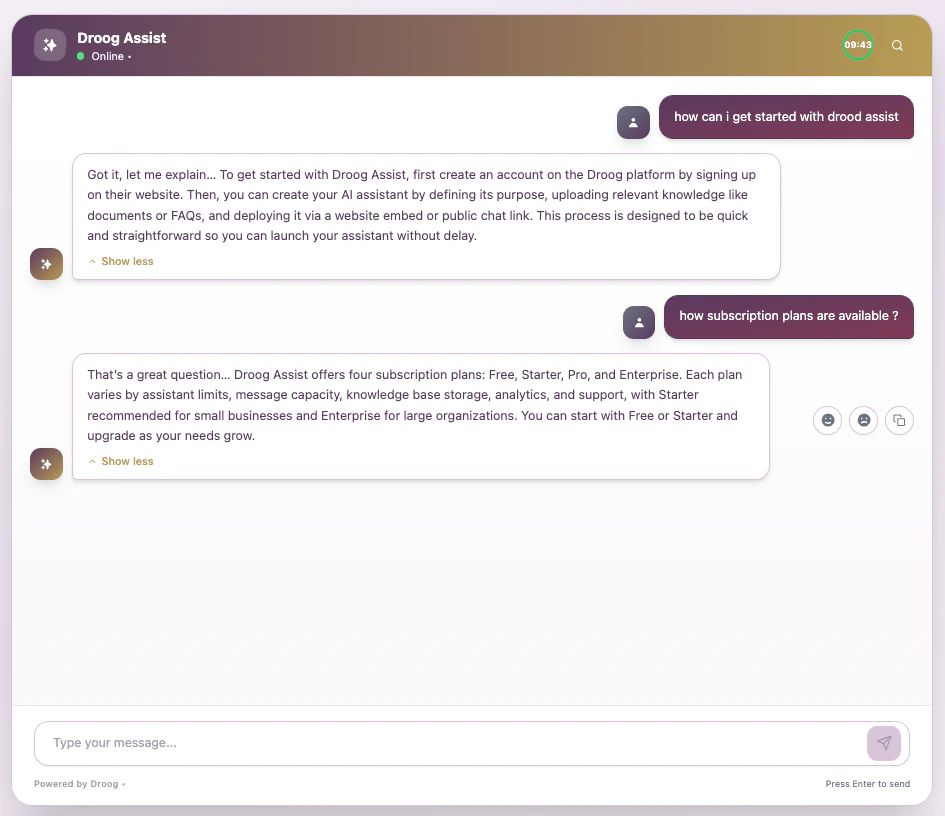
3. Droog searches your content
Droog doesn’t search using simple keyword matching. It understands the meaning behind the question and finds the sections of your documents that are most relevant, even if the user didn’t use the same words. For example, if your document says “required supporting materials” and the user asks about “documents needed”, Droog understands they’re asking the same thing.4. An answer is generated
Droog takes the most relevant sections it found and uses them to compose a clear, natural response. The answer is always based on what’s in your content — nothing more, nothing less.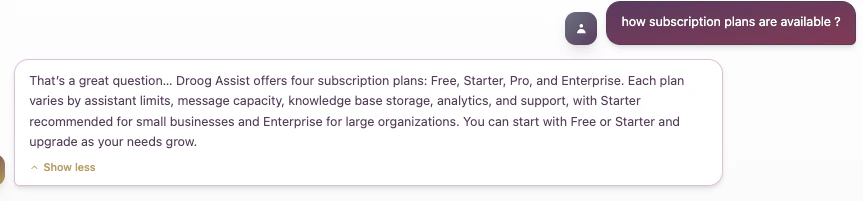
The assistant delivers a clear, sourced answer back to the user in seconds
What happens if the answer isn’t in your content?
If a user asks something that isn’t covered in your uploaded documents, Droog will say it doesn’t know, and escalate it as an active ticket based on the intent of the escalation being a handoff, knowledge gap, or out-of-scope question, rather than guessing or making something up. This is a feature, not a limitation. It keeps your assistant honest and your users informed. You or your team can clearly be notified of the escalation and take actions respective to the requirement.You can customise what your assistant says when it doesn’t have an answer — for example, redirecting users to your support team or a contact form. See **Customise Behaviour to set this up.
Keeping your assistant accurate over time
Your assistant is only as good as the content you give it. Here are a few simple habits that keep responses accurate:Upload new documents regularly
Whenever your policies, pricing, or processes change, update your knowledge base. Your assistant will reflect the changes immediately.
Remove outdated content
Delete documents that are no longer accurate. Old content can lead to outdated answers, even if newer documents say something different.
Add your website pages
If your website has helpful content like FAQs, product pages, and guides, add the URLs directly or the sitemap to select relevant URLs. Droog will read and index them automatically.
Test after every update
After uploading new content, use the built-in test console (Test Assist) to check that answers have updated correctly before users see them.
Ready to build your knowledge base?
Manage your knowledge base
Learn how to add, update, and organise your documents.
Test your assistant
Use the test console to check how your assistant responds before going live.
Have a question? Reach us at contact@droog.io