
Test before you go live
Before your assistant is seen by real users, it’s worth spending a few minutes testing it yourself. This helps you catch gaps in your knowledge base, spot unexpected responses, and build confidence that your assistant is ready. Droog has a built-in test console so you can do this without any technical setup.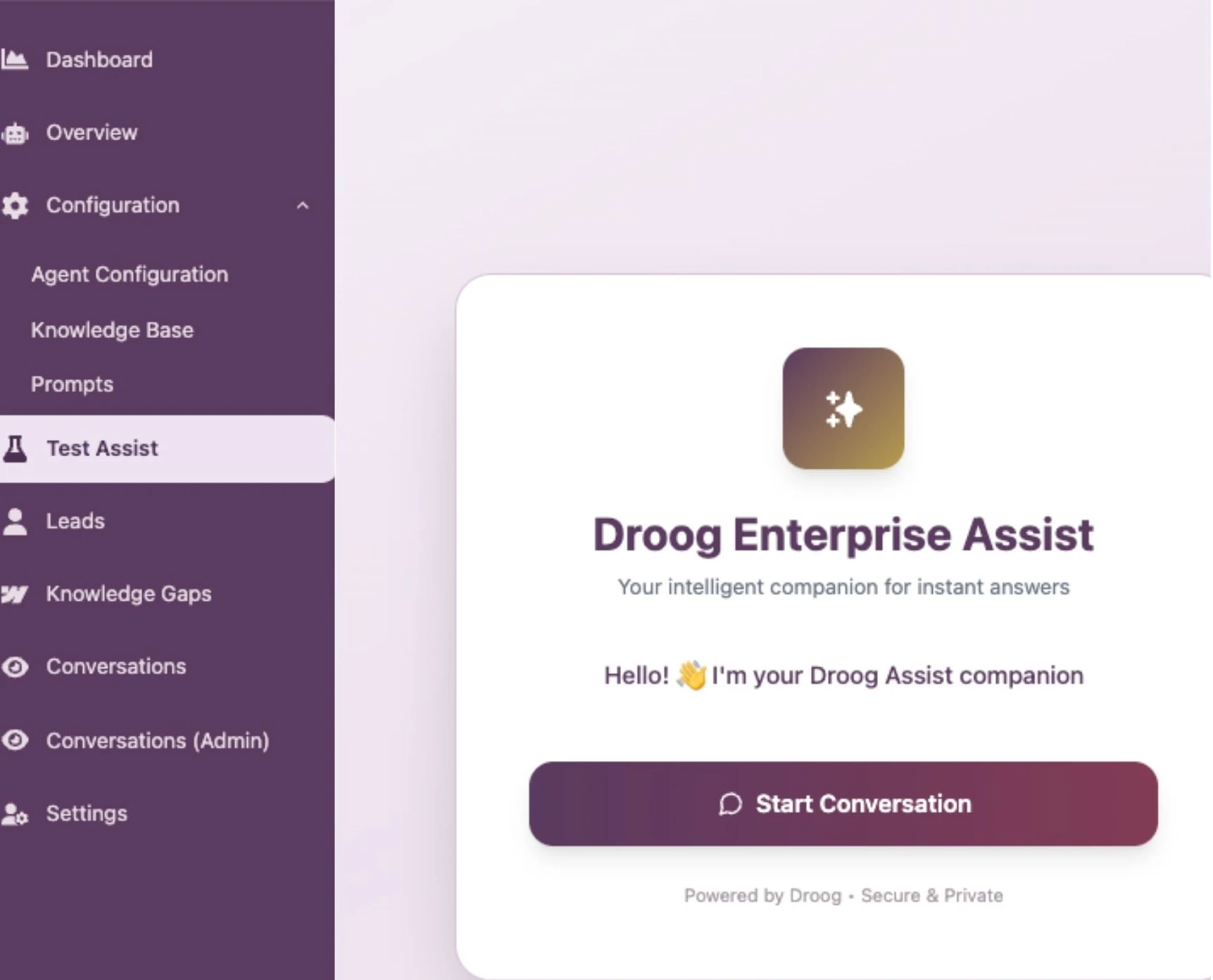
The test console — ask your assistant questions the same way your users would, before going live
How to open the test console
- Go to your Dashboard and open the assistant you want to test
- Click the Test Assist tab
- Click on Start Conversation
- Type a question in the chat box, just like a real user would
- Review the response
The test console uses your live knowledge base. This means any documents you’ve added or removed will be reflected immediately in test responses.
What to test
The goal of testing is to make sure your assistant answers correctly, stays on topic, and handles edge cases gracefully. Here are the key areas to check:Core questions — does it know what it should?
Start with the most common questions your users are likely to ask. These are the questions your knowledge base was built to answer Ask yourself:- Is the answer accurate?
- Is the answer complete — or is something important missing?
- Does it sound like it fits your brand?
Out-of-scope questions, does it stay in its lane?
Try asking your assistant something it shouldn’t answer, something completely unrelated to its purpose. A well-configured assistant should politely decline and redirect the user, rather than trying to answer something it has no business answering.Unknown / relevant questions what happens when it doesn’t know?
Ask something that isn’t covered in your knowledge base at all. Your assistant should acknowledge that it doesn’t have that information, not guess or make something up and instantly record the user’s query as an escalation, where the human agents can review and revert to the user.Follow-up questions → does it remember the conversation?
Droog assistants support multi-turn conversations — meaning the assistant remembers what was said earlier in the same chat. Test this by asking a follow-up question that only makes sense in context:“What documents do I need to apply?” (assistant replies) “How long does it take to process them?”The assistant should understand that “them” refers to the documents mentioned earlier, not start from scratch.
Common issues and how to fix them
The assistant gives a vague or incomplete answer
The assistant gives a vague or incomplete answer
Likely cause → The relevant document wasn’t uploaded, or the content is too briefFix → Upload more detailed content covering that topic
The assistant gives the wrong answer
The assistant gives the wrong answer
Likely cause → Outdated document is still in the knowledge baseFix → Delete the old document and upload the correct version
Assistant goes off-topic
Assistant goes off-topic
Likely cause → No constraints definedFix → Add topic constraints in the Extra Intelligence field
Assistant says it doesn't know — but you uploaded the answer
Assistant says it doesn't know — but you uploaded the answer
Likely cause → Document is still processingFix → Wait for the document status to show
Active. Press the Re-sync In the knowledge base, then test againAnswers sound robotic or off-brand
Answers sound robotic or off-brand
Likely cause → Personality settings are too genericFix → Revisit Voice and Personality and add more specific tone guidance
Test after every change
Testing isn’t a one-time step. Anytime you make a change to your assistant or knowledge base, it’s worth running a quick test to ensure everything still works as expected.After uploading new documents
Check that the assistant can now answer questions about the new content.
After removing documents
Confirm the assistant handles questions about deleted content gracefully.
After changing settings
Verify that tone, constraints, and behaviour changes are reflected correctly.
Before publishing
Always do a final test run before activating or reactivating a live assistant.
What’s next?
Embed on your website
Once you’re happy with how your assistant responds, deploy it to your website.
Monitor conversations
After going live, track how real users are interacting with your assistant.
Have a question? Reach us at contact@droog.io